

SME Review Assistant — User Guide
An SME-in-the-loop AI reviewer for QC test cases. It reads your test cases against the spec, grounds every finding in the Joblogic business rules, writes the findings into your SME Review workbook, and proposes a verdict — you stay in control and make the sign-off decision.
The golden rule: the tool proposes, you decide. It never signs off on its own, never overwrites your original files, and never changes the business-rule corpus. Every verdict you see is a proposal.
The three pages (top menu)
| Page | What it's for |
|---|---|
| Reviews | Run a review (New review) or open a past one (All reviews). This is where the AI does its work. |
| Queue | The live board of SME review requests pulled from Jira — who's reviewing what, sign-off status, timelines. Your daily "what's on my plate" view. |
| Guide | This page. |
The two kinds of review
Pick one on the New-review page under "What are you reviewing?":
| Project Approach (Stage 1) | Final Evaluation (Stage 2) | |
|---|---|---|
| When | Before the tests are run | After the tests are run |
| Reviews | The Test Strategy + Impact Analysis + Technical Approach vs the spec | The completed QC test cases + results vs the spec |
| Produces | Findings written into your SME Review workbook | Findings written into your SME Review workbook + a proposed verdict |
Most of this guide covers Final Evaluation — the everyday QC review. Project Approach is summarised in §10.
Part A — Run a review
1. What you need
Three files. That's it.
| File | What it is | Format |
|---|---|---|
| SME Review workbook (MOM) | The SME Review Final Evaluation workbook. The tool writes findings into its SME QUESTIONS table. | .xlsx |
| QC Test Cases | The "Test Cases & Test Results" workbook being reviewed (one or more). | .xlsx |
| Spec | The functional spec / acceptance criteria the tests must cover — open the Spec Link inside the Epic or Story ticket to get it (one or more files). | .docx, .pdf, .md |
Always start from the official templates (make your own copy — don't edit the template in place). The tool recognises test cases that follow the template layout.
- QC Test Cases — SDLC-TP13 · Test Strategy, Test Report & Test Case Template
- SME Review workbook — SDLC-TP19 · SME Review Meeting Minutes template
Name the SME workbook consistently across rounds — e.g.
Sheridans_Lift_SME_Review_Final_Evaluation.xlsx. The tool derives the review's identity and round number from the file name, so keeping the same name is what makes Resolved / Still-open / New work when you re-review (§6).
2. Quick start (the happy path)
- Reviews → New review, choose Final Evaluation.
- Drag all three files into the dropzone — they sort themselves into MOM / Test Cases / Spec.
- Submit to Review and watch the live progress.
- Triage the findings (accept / edit / reject), Write findings to the Review Report, and Download the updated workbook.
The rest of Part A explains each step.
3. Start a new review
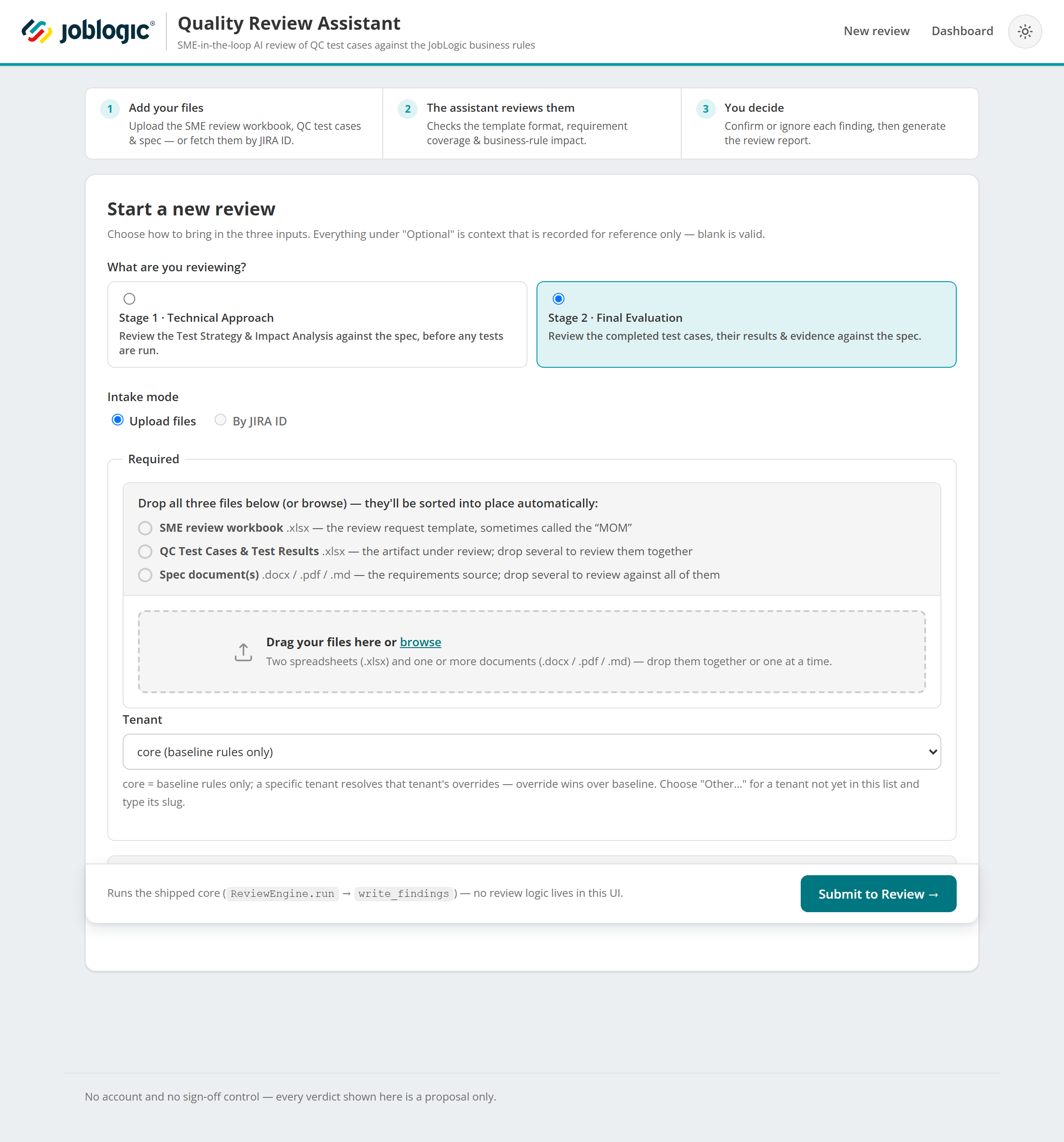
- What are you reviewing? → Final Evaluation.
- Intake mode → leave on Upload files. (“By JIRA ID” fetches the Spec + MOM from a Jira key
like
JOB-69839; you still upload the Test Cases.) - Drag all three files into the dropzone (or browse) — they're placed automatically.
- Submit to Review.
4. Watch it run
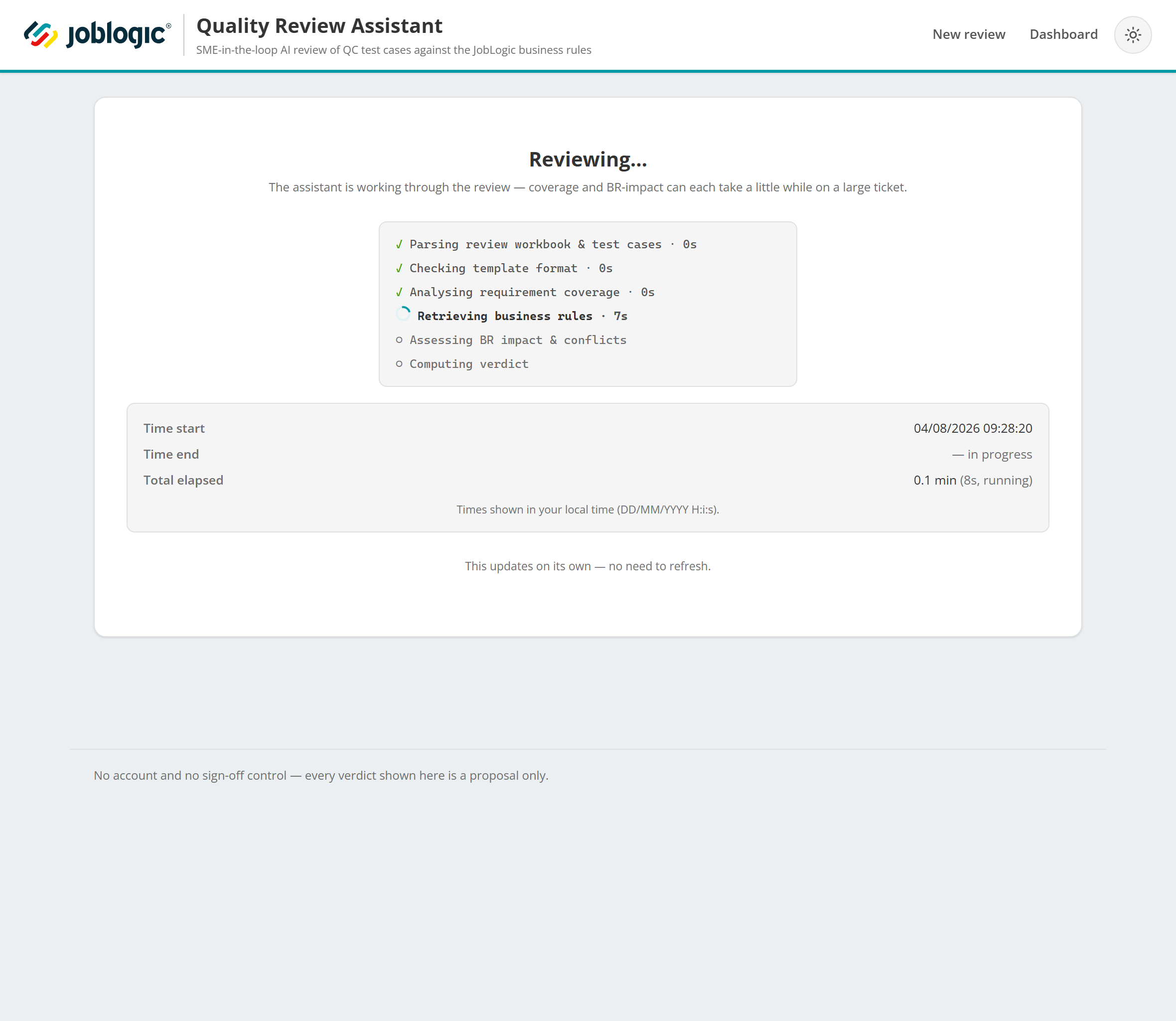
The Reviewing… panel refreshes itself every second and steps through:
Parsing → Template-format check → Requirement coverage → Retrieving business rules → BR impact & conflicts → Test-case quality → Verdict
Each step shows a live seconds counter. A big ticket (hundreds of cases) can take several minutes — no need to refresh.
Nothing is written to your files while it runs. You choose what gets written, later (§5b).
5. Read the results
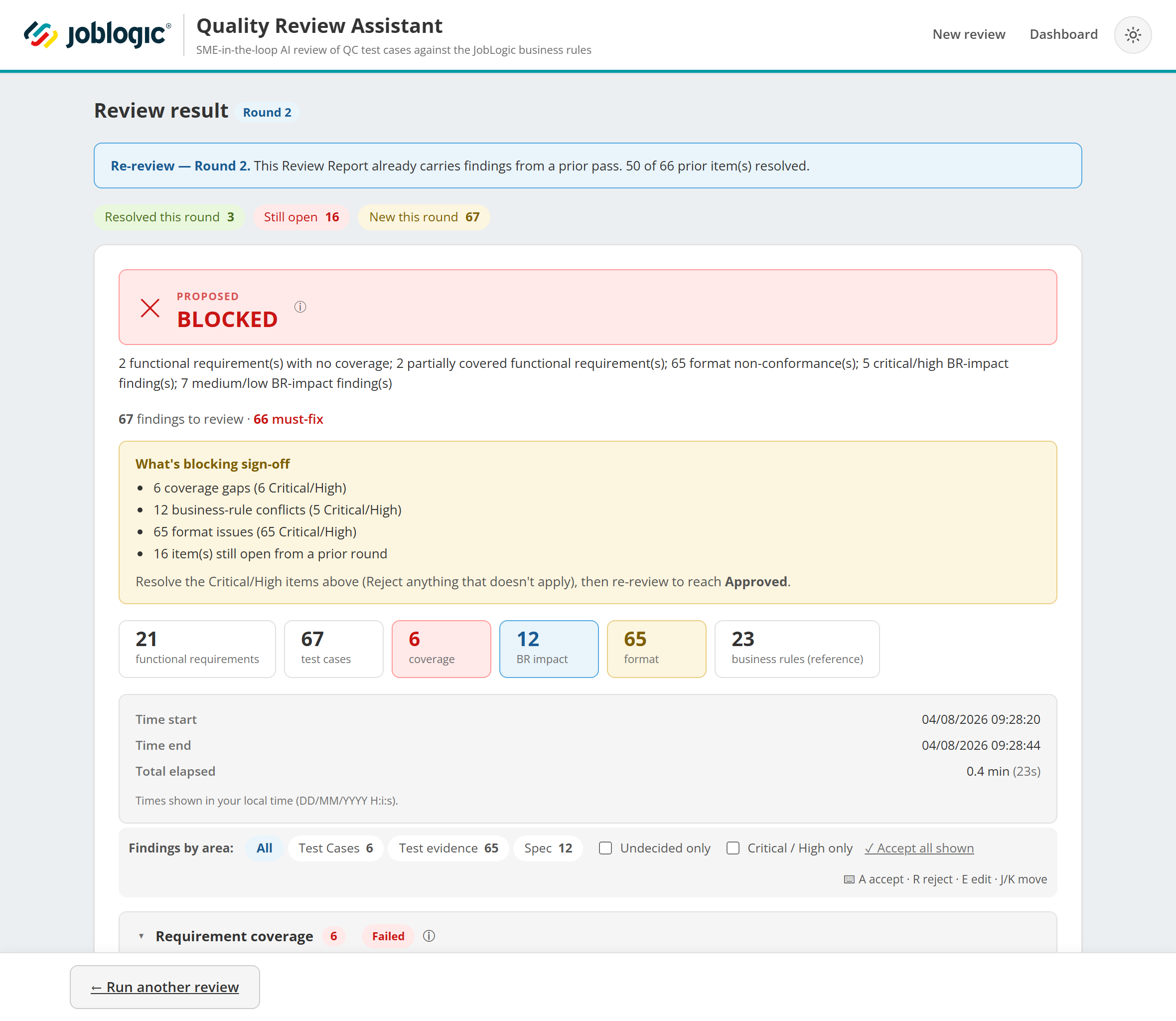
The page leads with the proposed verdict (e.g. PROPOSED · BLOCKED), a "What's blocking sign-off" checklist, and a strip of tiles (requirements · test cases · coverage · BR impact · format · business rules). It then groups everything into collapsible sections:
- Requirement coverage — is every acceptance criterion verified by a test case?
- Business-rule impact — conflicts / gaps against the Joblogic business rules.
- Test-case quality — duplicates, contradictions, and per-case defects (wrong navigation, wrong item references, ambiguous steps).
- Format conformance — template issues (missing expected results, missing evidence, …). On a
non-standard workbook (e.g. cases split across many
REQsheets) these are shown as advisory so they never block the substance of the review. - Traceability matrix — one row per requirement → covering test-case id(s) (collapsed by default).
The coverage traffic light
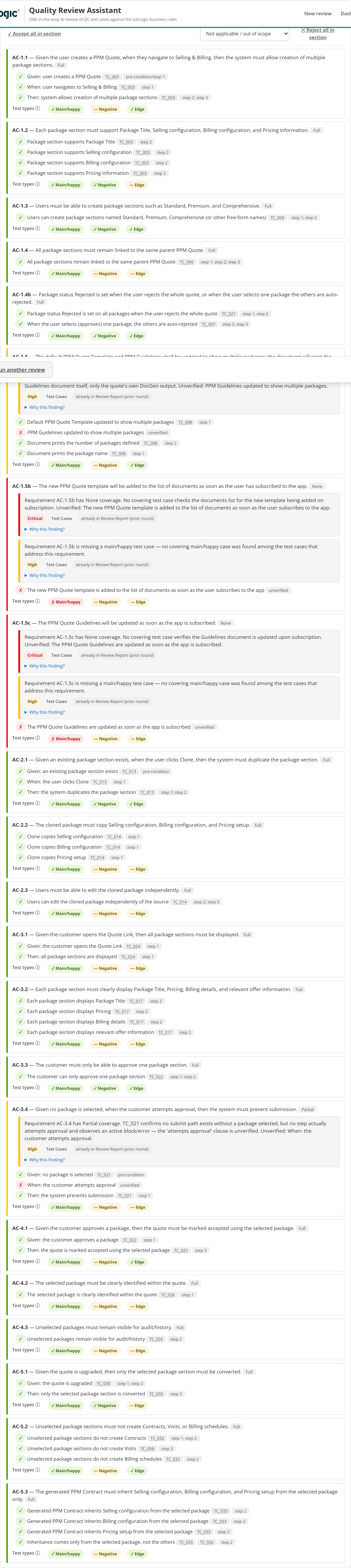
Each requirement card's left border shows its coverage at a glance:
- 🟩 Green — fully covered · 🟧 Amber — partially covered · 🟥 Red — not covered.
Open a card for the per-assertion breakdown (✓ / ✗), which test cases cover it, and main / negative / edge presence. Business-rule ids are clickable chips linking to the rule.
New: each finding carries a confidence. Deterministic checks (duplicates, format) are High confidence; LLM judgements show their own rating — so you can trust-and-skim the High ones first.
5b. Triage the findings, then write back
The review is deferred — nothing is written until you decide. Triage first, then write.
On each finding (buttons, or keyboard: A accept · R reject · E edit · J/K move):
- Accept — keep it (it will be written),
- Reject — dismiss it (pick a reason; it is not written),
- Edit — fix its severity or wording first,
- Add — record a finding of your own the tool missed.
Use the Findings by area filters (Test Cases · Test evidence · Spec) to focus, and Accept all shown to accept the current list in one click.
You must decide every finding before you can write — the tool won't write an un-triaged review.
Write findings to the Review Report then appends each accepted finding as a row in the SME QUESTIONS table (Status = Open, SME = SME Review Assistant, with a grounding note), gives each Status cell the Open/Resolved dropdown, and produces a new workbook to Download — your original is never touched.
6. Re-review across rounds
This is how a review converges:
- The team adds/fixes test cases (and/or you mark items Resolved in the workbook).
- Re-upload the workbook the tool wrote (it already holds the prior findings) plus the updated Test Cases, and run again.
- The tool detects the re-review and shows a round-over-round breakdown: - Resolved this round — prior findings now covered (or you marked resolved), - Still open — prior findings still present, - New this round — genuinely new findings.
- If a finding you marked Resolved is still detected, it is re-opened with a round note — a premature resolution can't slip through.
Repeat until Still open reaches zero.
What "Resolved" means: adding test cases resolves coverage gaps. BR conflicts and format findings are cleared by fixing the spec/test cases or by accepting/dismissing them — not by adding tests.
7. Sign off
When the verdict is Approved and there are no still-open items, the app offers a sign-off control. Ticking and confirming writes the Quality Sign-off into the workbook's DECISION section. The gate is strict — you can't sign off a review that still has open findings. Until then, keep iterating (§6).
8. The output workbook
In the returned .xlsx, the SME QUESTIONS table has one row per finding — Questions (the
finding), Status (Open/Resolved), SME, and a grounding Note. On a re-review, resolved
items are stamped with a round note; re-opened items flip back to Open with a + Round N note.
The DECISION section is only ever filled by an explicit sign-off (§7).
Part B — The Queue board
9. The Queue board
The Queue page is a live board of SME review work pulled from Jira — so you can see, at a glance, what's waiting, who's reviewing it, and where each item stands. Use Sync now to refresh from Jira.
The three views (tabs across the top)
| Tab | Shows |
|---|---|
| SME Queue | Every review request/sub-task — the main worklist. Sub-tabs narrow it to All · Request · Final Evaluation · Project Approach. |
| Resources | Workload by person or team. Sub-tabs: Reviewers (each person and how many they're reviewing) and Review Teams (each team and its total in-flight requests). |
| Project List | One row per Epic/project — with its Dev Timeline (Start → Due), Staging and Release dates, and a Sign-off column (the row turns green when both Tech + Quality are approved). |
Filters (the row above the board)
Narrow the board with any combination — each dropdown lets you type to search inside it:
- Team Review — who owns the review (e.g. Development Team, EC Team, SME Review, Quality Team).
- Sign-off — All Sign-off · Tech Sign-off · Quality Sign-off · No Sign-off.
- Status — the item's workflow status.
- Evaluation — the person assigned to the evaluation sub-task.
- Release — the release the item is tagged for.
- Search box — type a ticket title or ID to filter instantly.
The Next Action column tells you what the item is waiting on next (e.g. which team must act).
Share a view by its link. The tab you're on is stored in the page URL — copy the address and send someone a link that opens straight to, say, Resources or Project List.
Part C — Reference
10. Project Approach (Stage 1)
Choosing Project Approach on the New-review page runs the pre-implementation review: it checks the Test Strategy, Impact Analysis, and Technical Approach documents against the spec and writes its findings into your SME Review workbook.
11. Troubleshooting
| You see… | What it means / what to do |
|---|---|
| "This run has expired" | The result was reclaimed (a long wait, or the server restarted). No files are lost — just re-run. Whoever runs the app can extend the retention window (QRA_JOB_TTL_MINUTES) and enable restart-safe jobs (QRA_JOBS_BACKEND=blob). |
| "Review stopped at the template-format check" | The Test Cases workbook doesn't match a recognised template. Use the official template and re-run. (Cases spread across many REQ sheets are handled automatically — format issues there are advisory, not a stop.) |
| "Something went wrong… No Review Report was modified" | The review failed and nothing was written. Check each uploaded file is the one you meant. If it persists, ask support. |
| BR chips show as plain badges | The Insights Portal link isn't configured — the review is unaffected; only the chip links are off. |
The tool proposes; the SME decides. It never signs off on its own, never overwrites your source file, and never changes the business-rule corpus.